
How to Edit Your Google Business Listing, Field by Field
Key takeaways
- Sign in to the Google Account linked to the profile, choose Edit profile, change the field and select Save.
- Changing the business name, address or category can send the profile back into verification, so do not edit those while a postcard is in the mail.
- Google says edit review usually takes up to 10 minutes but can take up to 30 days, so check your edit status before resubmitting.
To edit your Google business listing, sign in to the Google Account that manages the profile, choose Edit profile, change the field and select Save. A few edits can send your profile back into verification, and some changes take a while to show.
This guide covers every field owners actually change: business info, hours, categories, phone numbers, the description, the address and the service area. For each one you get the menu names, the limits Google sets and the traps that cause trouble.
Menu labels change from time to time, so follow the same idea if a button looks different on your screen.
01.How to edit your Google business listing: where to start
Sign in to the Google Account linked to your profile, go to your Business Profile on Google Search and select Edit profile. In the Google Maps app, tap Business at the bottom right, then Edit profile. Make your changes and select Save. Google reviews edits before they go live, so a saved change may not show right away.
On a computer, search for your business name while signed in to find your Business Profile. On a phone, the Maps app route above does the same job. Photos, posts and services have their own sections, and our guide to Google Business Profile photos covers the picture side.
One rule decides how much you can change. A verified profile can edit all of its info. An unverified profile can edit only the business name, category, address, hours, phone number and website, and verifying unlocks the rest. Some businesses might need to verify first before they can change anything.
You may still see "Google My Business" in older guides and videos. Google renamed it Google Business Profile in November 2021, as 9to5Google reported. The edit steps in this guide use the current names.

02.Edit Google business info: the fields and their limits
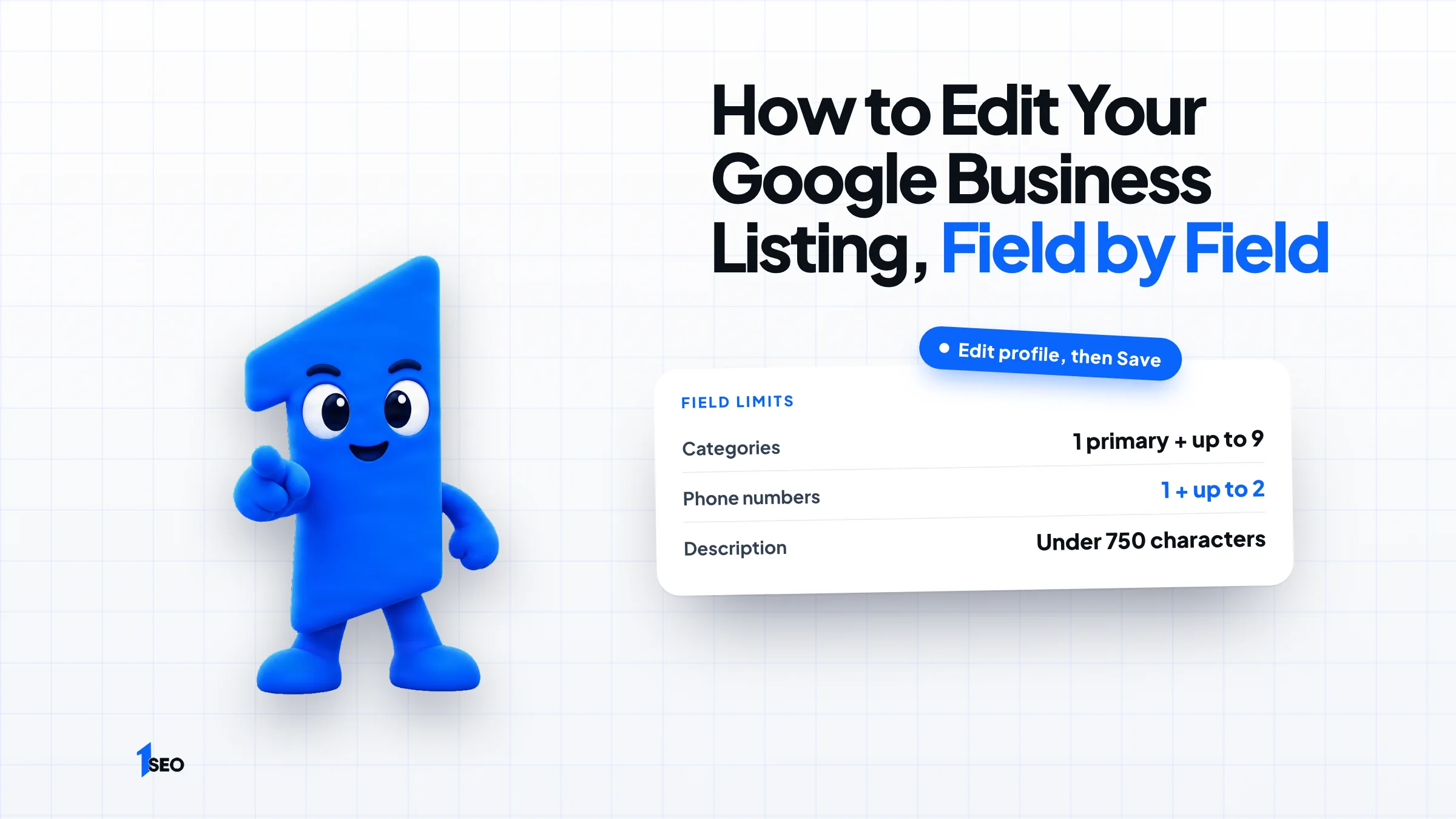
Each field has its own rule. The name must match your real signage, categories allow one primary plus up to nine more, phone numbers allow a primary plus up to two more (no fax), and the description stays under 750 characters with no URLs or HTML.
Check these limits before you type. They save you from edits that get rejected.
| Field | Limit or rule |
|---|---|
| Business name | The name exactly as it appears on your real-world signage, stationery and other branding. Changing it after verification may mean verifying again |
| Address | Full and accurate. Moving to a new address after verification means verifying again. P.O. boxes and virtual offices are not accepted |
| Categories | One primary category plus up to 9 more |
| Phone numbers | A primary number plus up to 2 more, mobile or landline, not fax |
| Website | The full URL, including https:// |
| Description | Under 750 characters, no URLs or HTML, focused on your business rather than promotions, prices or sales |
| Social links | One link per platform |
| Opening date | Month and year only |
03.How to change your Google business hours
Choose Edit profile, then Hours. Next to Hours, select Edit, then Open with main hours. Check each day you are open, set the times and select Save. For holidays, use Special hours in the same section. Special hours cover closures or changes of up to 6 days in a row.
For a lunch break, add two entries on the same day. Say you close at 2 PM and reopen at 5 PM: set the first entry to close at 2:00 PM, select Add hours, then set the second entry to open at 5:00 PM. For a 24-hour business, choose 24 hours under Opens at for each open day.
For holidays, click the edit icon next to Special hours. Accept a suggested date or select Add a date. Clear the Closed box and enter times if you are open, or leave it checked if you are closed. Then select Save.
Three rules from Google's special hours page trip people up:
- Special hours only show if your regular hours are set to Open with main hours.
- For a closure of 7 days or more, or an unknown length, mark the business as temporarily closed instead.
- One set of special hours cannot run longer than 24 hours, so an overnight shift needs two entries. The second entry replaces the next day's regular hours, so re-enter any hours you want to keep.
Google also suggests confirming your hours for official holidays, even when they match your regular schedule.
04.Which edits send you back to verification (and the Google business postcard)
Changing your business name after verification may require you to verify again. Moving to a new address does require it, and editing a category can prompt it too. With a postcard, most codes arrive within 14 days and expire after 30 days. Do not edit the name, address or category while you wait, or the code stops working.
Two mistakes cause most postcard problems. The first is editing the name, address or category after you request the code, which makes the mailed code stop working. The second is requesting a new code because the first feels slow. A new request invalidates the mailed code and sends a replacement, which can lengthen the process.
Postcard is not the only method in Google's verification help. Depending on your business, Google may offer phone or text, email, a live video call, a video recording or a postcard. You cannot choose the method, because Google decides which ones you can use. Google also says verification reviews generally take up to 5 business days, and rare cases take longer.
Plan address moves around that wait. Say a landscaper in Tampa moves to a new yard. That owner should not change the address the week before a big spring promotion.

05.Edit categories, phone numbers and the description
For categories, choose Edit profile, then Edit next to Business category. Type a primary category and pick it from the list. Select Add another category for extras, then Save. Choose the most specific option, such as Nail salon instead of Salon, and add extras only for real services.
You cannot create your own category, as Google's category help explains. If no specific one fits, pick a general one. Google also says not to add a category for every product or service you offer, and not to use categories as keywords. Remember that an edited category can prompt verification again.
The description sits on the same Edit profile screen. Write plain facts about what you do and who you serve, under 750 characters, with no URLs or HTML, and focused on your business rather than promotions, prices or sales.
To hide a phone number from the public profile, select More, then Business Profile settings, then Advanced settings, and turn on Don't show under Phone number. To add numbers, use the primary field plus up to two more.
If you want the full list of what to pick, read our guide to Google Business Profile categories.
06.Update your address or service area
To change your address, choose Edit profile and update the address field. To change where you work, choose Edit profile, then Location, select Edit next to Service area, choose a suggested area or enter your own, and select Save. You can set up to 20 service areas, and approved changes may take up to 48 hours to show.
Google's service area page says to keep your overall service area within about 2 hours of driving time from your business base. Define it by cities, postal codes or other places you serve, and be specific.
If you serve customers at their locations rather than at yours, hide your address from customers. A home-based business that travels to customers, such as a plumber working from home, should clear the residential address from the profile and keep only the service area.
Do not swap in a P.O. box or a rented mailing address to look local. Google says P.O. boxes and virtual offices are not eligible for a profile. A new storefront address is a verification event, so use the verification section above before you move it.
07.Why your edit does not show up (and what to do)
Google reviews edits to a verified profile against its guidelines. Review usually takes up to 10 minutes but can take up to 30 days. Use the Check your edit status link on Google's Edit your Business Profile help page to see whether your change is Pending, Accepted or Not approved.
If the status is Pending, wait. If it is Not approved, Google may have been unable to confirm the change is accurate, and you may be able to appeal. Google can also change your profile itself when reports suggest your info is wrong, and it sends you a notification and an alert in the Edit profile section when it does.
Google explains the statuses in what happens to your edits. Do not resubmit the same edit every hour. Make one change, note the date and check the status before trying again. Repeated changes make it hard to tell which one is stuck.
If the whole profile is missing from Maps, that is a different problem. Read why your Google Business Profile is not showing, or the guide to a suspended Google Business Profile if you received a suspension notice.
Conclusion
Most Google Business Profile edits take a minute. The ones that cause trouble are the name, address and category, because changing them after verification can send you back into verification. Change those on purpose, one at a time, and never while a postcard code is in the mail.
Before you edit, read the Google Business Profile optimization checklist and the guide to NAP consistency, since a new address or phone number also has to match your other listings. For hands-off help, see our Google Business Profile management service.
Frequently asked questions
Can anyone edit my Google business listing?+
How long do edits take to show up?+
Will changing my business name require verification again?+
What if my postcard never arrives?+
Is Google My Business the same as Google Business Profile?+
Keep going
What to read next
The serviceGoogle Business Profile optimizationEvery field, category, photo and post set up to help you show up in the map pack.See the serviceSources & references
About the author
